Leeds Beckett University - City Campus,
Woodhouse Lane,
LS1 3HE
Create Question Banks AND POOLS | Ultra

Page last updated:
This staff guide explains how to create Question Banks and Question pools for Blackboard Tests.
If you have used Question Pools prior to Ultra here is the new terminology.
Terminology: Original versus Ultra
Ultra |
Original |
| Question pool | Random block and question set |
| Question bank | Question pool |
| Question analysis | Item analysis |
Question Banks store collections of questions that can be reused across one or more Blackboard Tests.
Question Pools as a Test
When building a Blackboard Test, create a Question Pool that pull questions from a selected Question Bank. For example, you can set a Question Pool to randomly display 10 questions from a bank of 50, giving each student a different combination.
Types of questions within a Blackboard Test
- Auto‑generate questions (AI)
- Calculated Formula question
- Calculated Numeric question
- Essay question
- Fill in the Blank question
- Hotspot question
- Matching question
- Multiple Choice question
- True/False question
- Jumbled Sentence question
- Reuse questions (previously created)
Question pool as an Essay assignment
See the example that is demonstrated in the further guide on creating a question pool - this example draws four essay questions from a question bank that will randomly display one question from the four in the pool to each student.
Please note: to create a question pool as an essay assignment, you must first create a Blackboard Test.
a. Open Question Banks - Manage Banks link from the right-hand menu.
b. Select New Question Bank using the Plus icon.

c. Add a Name and Description and Save.
d. Create a Question using the Plus icon to select the question type.
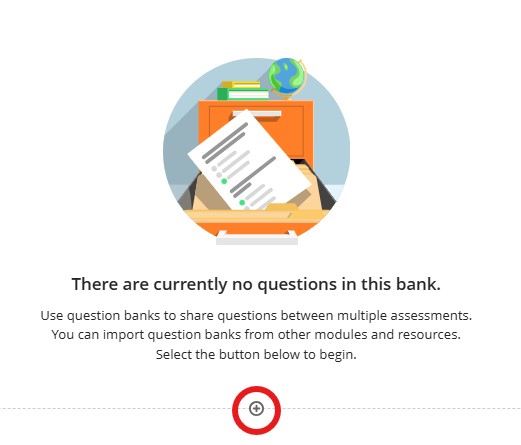
e. Select from the list of questions types, complete the question and answer then Save.
- While in this section, consider the other settings on the question such as the Point value, tagging a keyword, question type category, Metadata etc.
- All these tools will assist in locating Questions to reuse and find via search.
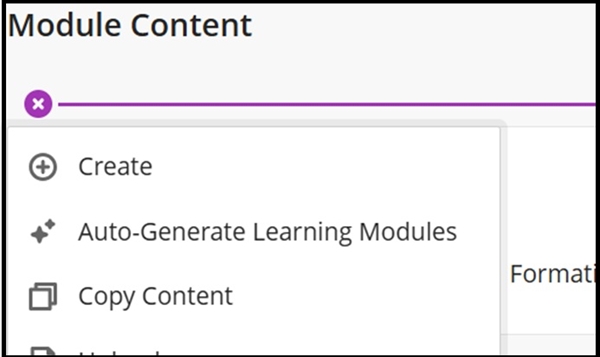
a. In the module Content Area, click Create (+) icon.
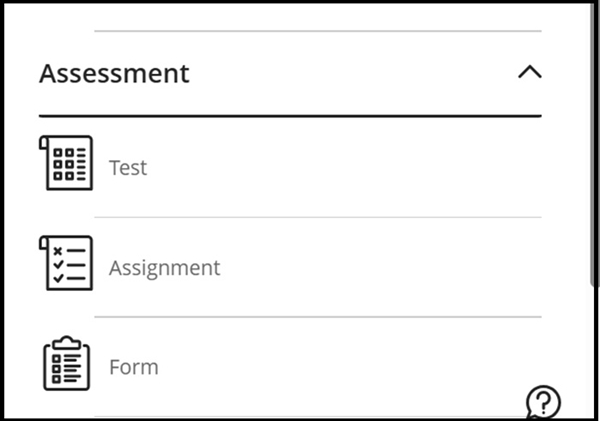
b. Select Test.
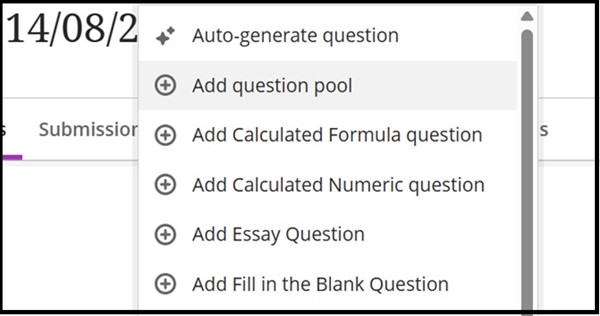
c. Click the + icon in the centre of the page to open the menu, then select Add question pool.
d. In the Questions to reuse section, select the questions you wish to add. As shown, the message confirms that 4 questions will be added.
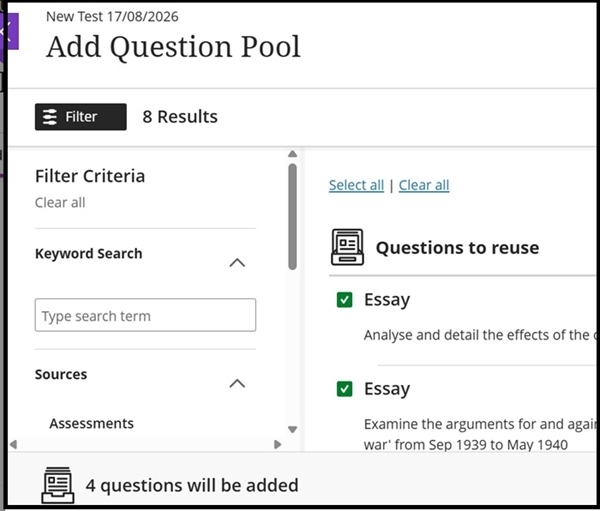
e. On the right-hand side of the screen, click the Add Questions.
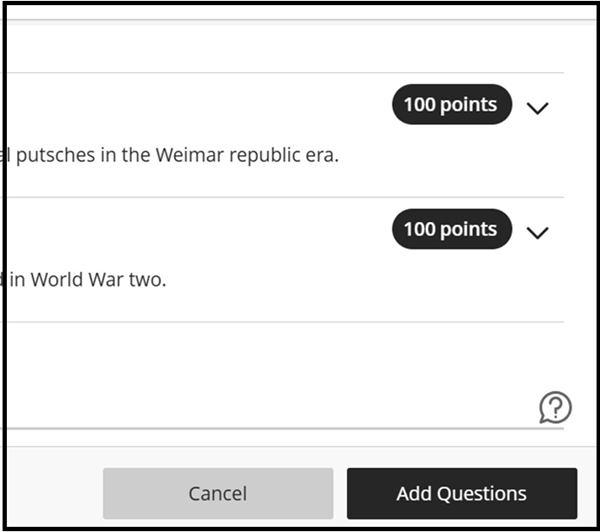
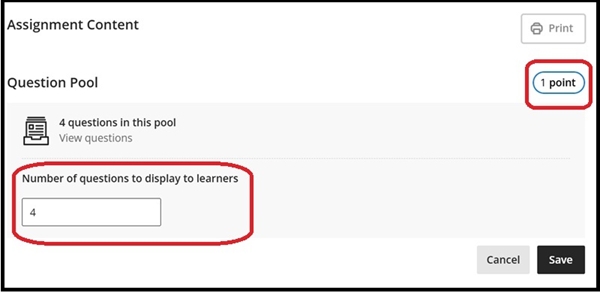
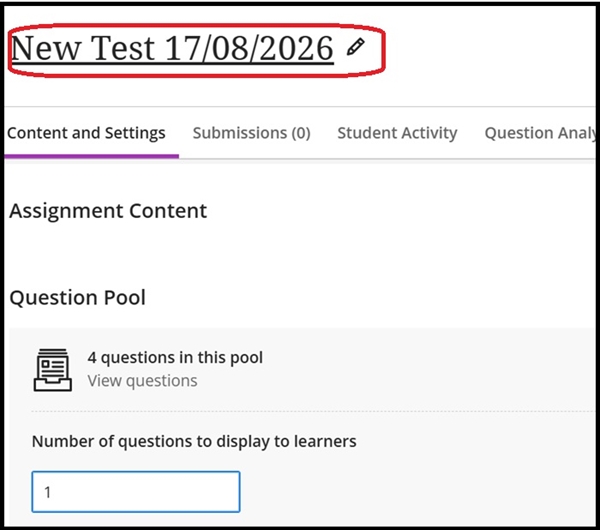
f. In the following screenshot, we have highlighted the settings we wish to change. First, we will change the essay to 100 points (see the next step and screenshot for more detail), and then set the pool to display one question only.
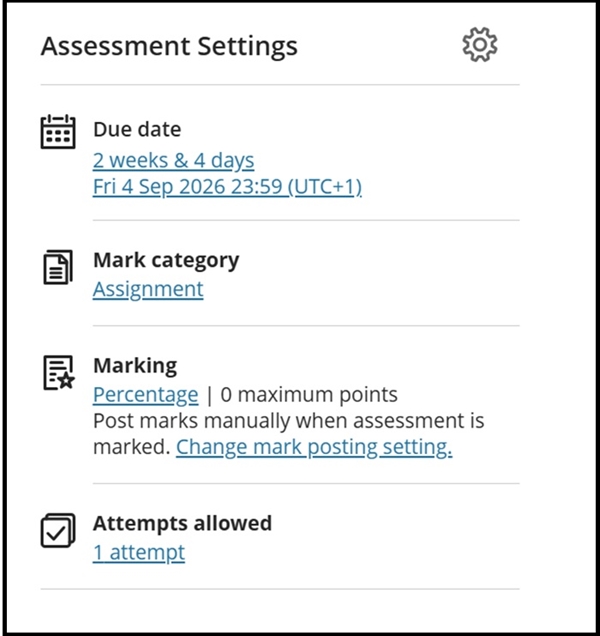
g. In the Assessment settings section, click on the cog icon (or the individual links) to customise the assessment. In this example, we changed the Due Date, set the Mark Category to Assignment, and changed Marking to Percentage (although, as shown above, the point value is still used to determine the mark).
We also disabled the default setting for automatic mark posting.
h. Rename the test by clicking the pencil icon.
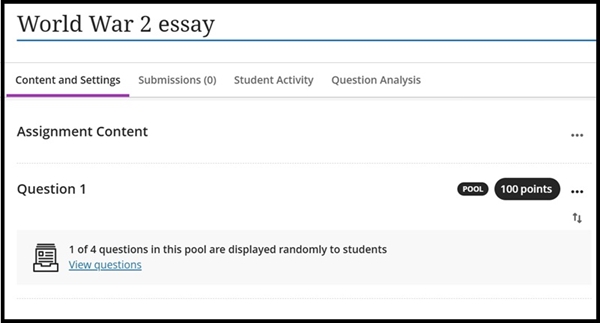
i. The screenshot below shows the completed essay pool question. The message confirms that one question will be randomly selected from the pool and displayed to each student:
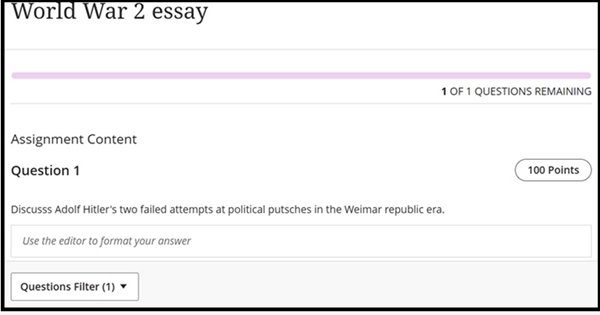
j. The following screenshot shows the student view, where one of the four essay questions in the pool is displayed.
For more information about Question Pools, please see Blackboard's help page Blackboard's help page here.
It is possible to copy over Question Pools from Original modules using the Copy items functionality. Please be aware that any unsupported question types will be automatically removed.
Reusing Question Banks Ultra to Ultra
a. The use the Search box, Filter Criteria and Tags.
b. Use your keyboard to navigate questions:
- Use the Up/Down Arrows to navigate questions
- Use the Right/Left Arrows to expand and collapse questions
- Use the TAB key to navigate source groups
- Select check boxes with the spacebar
c. Once questions are located and selected, use the Copy Questions button.
d. You can freely edit copied questions in your assessment because changes won’t affect other assessments. Each copy is independent, so updates made in one place won’t appear elsewhere. If you want consistent changes across all versions, you’ll need to edit each copy individually.