Leeds Beckett University - City Campus,
Woodhouse Lane,
LS1 3HE
Marking Schemas | Ultra

Page last updated:
This staff guide will show how to set up Marking Schemas
A Marking Schema can be created for instance a Pass / Fail to display rather than points or percentage.
- Access the Grade Centre Setting (cog top right)
- Once created you can add this to your assessment
a. In Grade Centre, select the settings cog (top right).
b. select the link Manage Mark Schemas.
c. Select the Plus icon +Add to create a new Marking Schema - this guide shows the Pass/Fail marking schema.
d. Edit the Mark name: Pass/Fail
e. Edit the default Grade Names Letter and Mark range
- P (Pass) and change the Mark Range between 1% and 100% (see image below),
- Letter F (Fail) - the range should change to 0% - 1% automatically
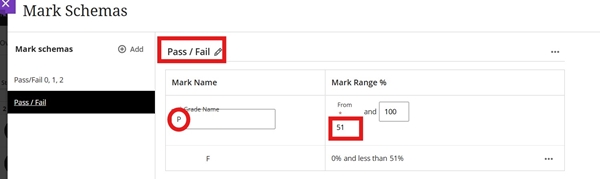
g. Click on Save.
a. Grid View - Create a new column or edit an existing column for an assessment by clicking on the column name.

Then change the Marking Schema under the options for Mark using:

b. List View - Edit the assessment link via the three dots more > Edit and change the Marking Use to the required schema (e.g. Pass/Fail).