Leeds Beckett University - City Campus,
Woodhouse Lane,
LS1 3HE
Overall Mark | Ultra

Page last updated:
This staff guide shows you how to set an Overall Mark (calculated column) in Grade Centre.
Setting up an overall mark
This guidance is based on all of the assessments assigned with a category and marked out of 100, typically a calculation type to choose is Points.
Overall Mark Settings
- A check box is presented to select the option to calculate marks based on points earned our of total marked points.
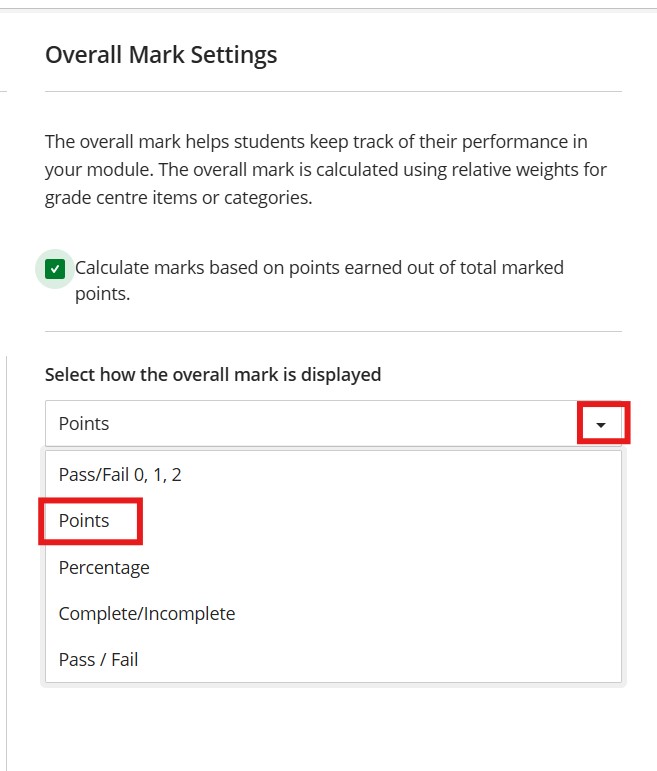
- Select how the overall mark is displayed (a list of marking schemas will be visible in the drop down menu).
- Choose if you want to display the mark (column) to students.
To edit the overall marks:
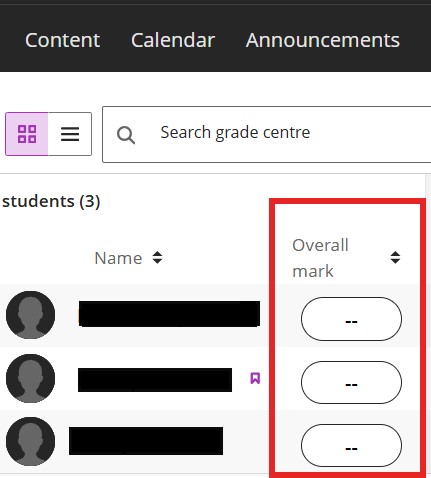
- Grid view - click on the column header 'Overall Mark' to be taken to the overall mark settings page.
- Grade Centre Settings - Manage overall mark settings, this will allow you to edit and/or remove the option by unchecking the option to calculate marks (remove the green tick).
a. Within your module, go to Grade Centre settings (cog icon top right)
b. Navigate to the Overall Mark section and select the link Set up Overall Mark Calculation.The options for Overall Mark Calculation to choose the format to calculate the overall mark for your module are Points, Weighted or Advanced.
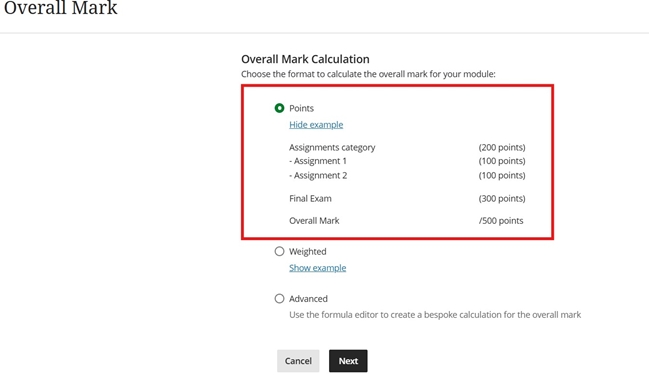
c. Select the marking format it is recommended to choose Points and Next. (If you want to create your own select Advanced; you can use then use the formula editor to create a bespoke calculation for the overall mark).
d. Select checkbox (green tick) and choose Points (recommended) from the drop down under Select how the overall mark is displayed.
e. Choose if you want to the column to be displayed to students by selecting the option: Show to Students and Save.
f. In Grade Centre Grid view, in the student names the Overall Mark column will calculate after each assessment is marked.