Leeds Beckett University - City Campus,
Woodhouse Lane,
LS1 3HE
Self enrol on a Module or course community

Page last updated:
This staff guide explains how to use the self-enrol tool to enrol onto a module or community in MyBeckett Ultra.
Staff can be enrolled on modules via one of three methods:
Method 1: Enrolled by a course administrator in Banner
Have you ever wondered why you're not automatically enrolled on the modules you lead every year? MyBeckett Ultra takes enrolment data from Banner, which holds a complete list of credit modules/module leaders. If you're not registered as the module leader on a module in Banner, Banner can't tell MyBeckett to enrol you. Academic staff can be registered as leaders on modules in Banner by course admins and any changes made in Banner will take up to 2 hours to be reflected in MyBeckett.
Method 2: Enrolled by the module leader
While Banner gets the module started by enrolling the module leaders, most modules have other teaching staff working on them. It is the job of the module leader to add the additional colleagues. If you would like to add a colleague to a module you're already enrolled on, please see our guide to enrolling users.
Method 3: Use the self-enrol tool in MyBeckett Ultra
Sometimes Banner has not enrolled anyone onto a module because there are no module leaders registered. If you cannot wait for the course administrator to add you and then wait for Banner to do its work, you can use the Enrolment Tools via the All Staff Community (see below). This is a quick and easy way to get access to modules that you can use whenever you want. Please note, you can only self-enrol on modules set to available.
To use the module self-enrol tool, you need to find the CRN (Course Registration Number). If you don't know the CRN, please speak to a course/student administrator.
The CRN appears after the module name in your modules list. You need only the number (no spaces or other text).
- Module ID – Module Name – CRN – Year
- For example: AIH430006 – Research Methods – 12345 – 202627
Students are automatically enrolled on modules via a data feed from Banner. If you think your students haven't been enrolled, or you see students listed but are showing as not active, please contact Digital Learning.
a. Click the MyBeckett or the Communities link from the left-hand menu.
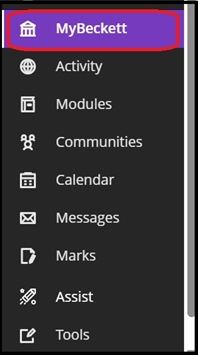
b. If you choose the Communities link click All Staff Community.
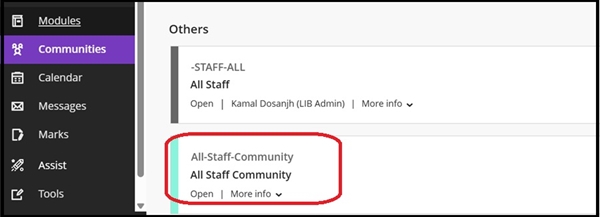
c. If you choose the MyBeckett link scroll down to Staff Welcome and Quick Links and open the All Staff Community link.
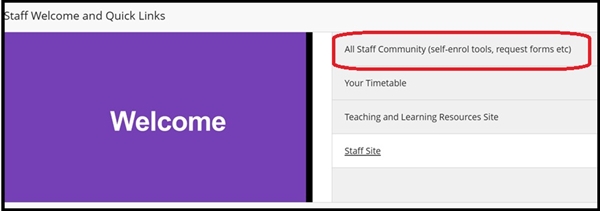
d. Scroll down to Enrolment Tools, expand the item menu by clicking the downward pointing arrow on the right-hand side and click the LBU Self Enrol link.
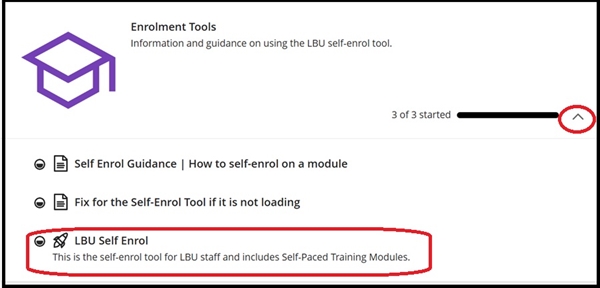
e. Enter the CRN of the module (e.g. 12345) into the CRN Input Box, then click Search Modules. You don't need to type the year (just the 5 digit code).
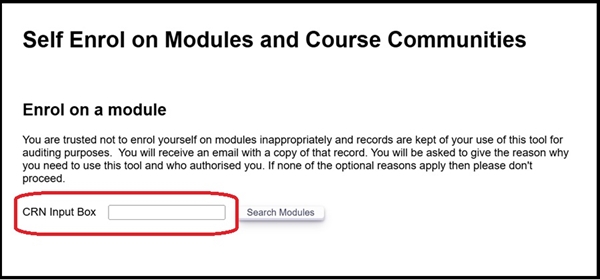
f. Select the relevant module and one of the choices from the 'Who authorised...' option list, then click Enrol.
g. A confirmation tells you that you're enrolled on the module. A confirmation email is sent to you and the Digital Learning Service.
To use the self-enrol tool, you need to find a course's programme code, please speak to a course administrator or another member of your course team if you are not sure what this is.
You can search the Community Catalogue in the Communities link to look up the code and double check with your colleagues.
The programme code appears after the course name. You only need this code example: BAHPE (ensure there is no spaces or other text. For example BAHPE is the code for the Course: BAH Physical Education's Programme).
a. Open the All Staff Community.
b. Select Enrolment Tools.
c. Click the LBU Self Enrol link, this will open the tool.
d. In the Enrol on a Course Community section. Type the programme code (up to five characters) e.g. ‘ABCDE’ into the Award Code Input box and click Search Course Communities.
e. Select the community, checking the level and year. Note: Other communities may share the same code but have a different name.
f. Select your reason for enrolling from the list. Click Enrol and OK to complete.
g. A confirmation tells you that you're enrolled. A confirmation email is sent to you and the Digital Learning Service for our records only.
You can enrol on our Resource Modules to support you with multimedia submissions. More information on the different types of resource modules are available in our multimedia submissions guide.
a. Click MyBeckett from the left-hand menu.
b. Scroll down to Staff Welcome and Quick Links and open the All Staff Community link.
c. Scroll down to Enrolment Tools, expand the menu by clicking the right-hand side downward pointing arrow and click the LBU Self Enrol link.
d. Scroll down to Enrol on a resource module and click Search Resource Modules.
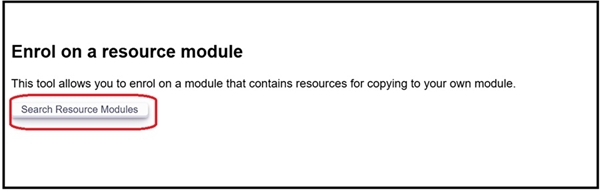
e. Select the relevant module and click Enrol. There are two Ultra modules to choose from plus an Academic honesty quiz.
f. Close the window and check your Modules list. You may need to refresh the page for the resource module to appear.
g. Each resource module contains instructions on how to copy the content and how to use the content when the module starts.
Please email Digital Learning to be enrolled onto the All Staff Community, provide the staff username and/or email. Alternatively, follow the steps below to enrol yourself onto the All Staff Community to access the Enrolment Tool.
a. Log in to MyBeckett.
b. Click the Communities link in the main menu.
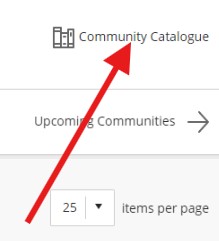
c. Select the Community Catalogue (top right of your community page).
d. Select LBU Staff from the dropdown menu under Browse Categories and click Go.
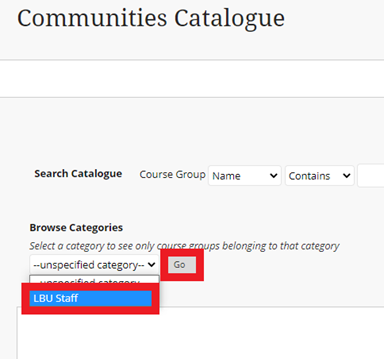
e. Click on the action link and choose Enrol and then OK.
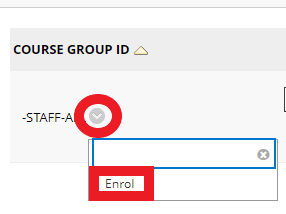
f. Return to your Communities menu and the tile will be now visible.
g. Pin to the top of the page by selecting the Star icon. Now you can use the Self enrol tool.