

Leeds Beckett University - City Campus,
Woodhouse Lane,
LS1 3HE
What's new and what's changed in MyBeckett?

Page last updated:
This staff guide provides an overview of recent changes to MyBeckett.
- Recent updates to MyBeckett Ultra, Turnitin and PebblePad
- Teaching staff are notified of changes through MyBeckett News (the Digital Learning Service email newsletter).
Known issues and workarounds are listed below.
- If something is not working as expected, please check below and if not listed please report it to us so we can investigate.
- Staff: Contact the Digital Learning Service if a feature stops working as expected.
- Students: Always sign post issues with MyBeckett etc. and general IT issues to the Library and Student IT Advice team, who will escalate to us if needed.
We understand it can sometimes be difficult for staff to know where to go for help and support for the different tools used in teaching. Several professional services teams work together to support you.
- This handy IT Help Infographic is designed to signpost colleagues to the right team.
- Please note that all student IT support is provided by the Library and Student IT Advice Team. Any issues identified while supporting students will then be escalated to the Digital Learning Service.
MyBeckett and Learning Systems Updates
On 2 February 2026 we launched a new resource to provide up-to-date student information that you can drop into your Ultra modules and communities content area.
Learning Object Repositories (LOR), are ready made content items that you can use in as many Ultra Modules and Communities as you wish. The current LORs available to use are:
- A list of useful links for students (content that was previously available in Modules and Community menus)
- Academic Skills materials
- Guides to learning systems such as Turnitin, collating links to student FAQs from the Library website
Please read our Learning Object Repositories guide to find out more.
The MyBeckett Ultra upgrade is underway across Leeds Beckett. Ultra is a new view of MyBeckett modules and communities and is designed to provide a cleaner, simpler view of content that is fully responsive to being used on smaller screens such as smart phones. More information is available on our MyBeckett Ultra page.
The new All Staff Community is in Ultra version and contains helpful information for all academics, teaching staff and course teams. This is set up to provide useful tools, information and resource for staff. If you are enrolled you will see it in your Community list but if not visible you can self-enrol (see instructions.) below.
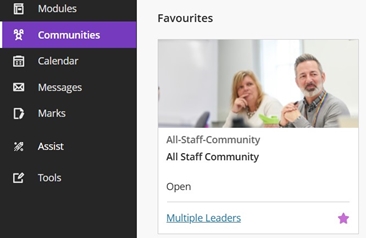
What are the benefits of the All Staff Community?
You will find links and content to assist you to navigate the many tools, information and resources such as:
| Staff Enrolment Tools |
Self Enrol on Module / Community Self Paced Training (for staff wanting to learn how to use the tools in MyBeckett) |
| Guides and Training |
MyBeckett and Digital Learning Guides How to enrol onto Self-Directed training modules instructions. |
| Learning Resources |
Subject Resources Learning Object Repositories (LOR) Student Support |
| Request Forms |
Non-Credit Module request form Campus Announcement request |
| Links to Tools and Resources |
Academic Calendar Staff Timetables InPlace Digital Services for IT Support Panopto Results Online Microsoft 365 (Outlook/OneDrive etc.) Google Drive Webfiles Zendto (Securely send large files) |
| Video guidance in MyBeckett |
Sharing videos with students guidance |
How to Self-enrol to the All Staff Community?
All staff have been enrolled onto the new All Staff Community found under 'Communities' in MyBeckett main menu.
If you are a unable to see it, you can enrol yourself following these steps:
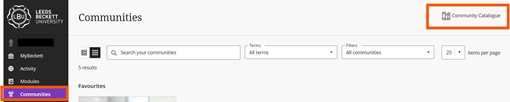
a. Click Communities in the main menu and then 'Community Catalogue' this is located at the top right above the search and filter boxes.
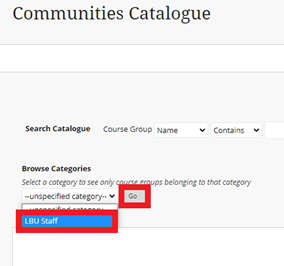
b. Select Browse Categories - this is located underneath the Search Catalogue boxes. Click on the the drop down menu; LBU Staff is listed then select the 'Go' button.
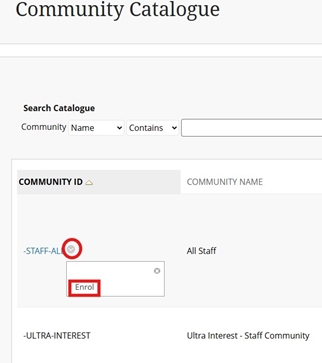
c. This will be listed, to enrol click on the action link -STAFF-ALL and 'Enrol' a confirmation message appears. To proceed select the OK button as you are now enrolled.
d. Click onto the Communities menu link to enter the All Staff Community.
Tip: Click on the Star icon to pin it to the top of this page; this is useful if you have many Communities to look after such as a Course Administrator role
Here is a list of discontinued apps and systems with possible alternatives, please note that these are approved alternatives that exist as part of the Microsoft 365 apps. Please use caution on 3rd Party tools and if you are unsure please ask.
Google Workspace apps (partial list) with suggested alternatives, please view the full list of apps that are being phased out in this Sway.
| Discontinued | Alternative | |
|
Turnitin Mobile app End of life 31 December 2025 |
Please log into MyBeckett via Google Chrome to mark Turnitin submissions via laptop or computer as mobile browsers on Android/iOS devices are no longer supported. |
|
|
Microsoft Teams Integration (MyBeckett) End of life 15 September 2025 |
Use Microsoft Teams app for occasional meetings or set up Class Teams Site for regular meetings (Lectures, Seminars). Please see this guide for more info. | |
| Poll Everywhere | MS Teams has a Polls add-in MS Forms has quizzes option (Microsoft 365) | Microsoft Teams has other polling add-ins, the only recommend the official Polls tool. | |
| Qwickly Course Tools | MyBeckett email and announcement functionality within in Modules & Communities can be used to send comms, though this will need to be done on an individual basis per module and or community. | |
| Respondus 4.0 and Integrity Browser | MyBeckett tests functionality in Modules can be used to create and edit questions in online tests/exams, though this now will need to be done on an individual basis. | |
| Google Keep | MS OneNote | |
| Google Meet | Microsoft Teams | |
| Google Tasks | Microsoft Teams allows ‘Planner’ and 'To Do' apps to be added to a Teams channel, this is a task management tool. | |
| Google Voice | LBU uses Microsoft Teams for voice calls | |
| Google Applied Digital Skills | MyBeckett VLE & Portal could be used as an alternative learning platform. | |
| Google Currents | Microsoft Teams | |
| Google Cloud Print | Library printing service can be utilised, and most devices now allow wireless printing. Support is available via library staff on campus. | |
| Google Earth | Google maps can be used for free outside of a Leeds Beckett account | |
| Google Translate | This is still available via Google Online | |
| Chrome Canvas | Adobe Creative cloud is available to staff/students. All staff enquiries to Digital (IT) Services. | |
| Google Docs add-ons from Store | Microsoft 365 add-in is available for Chrome. Note: This is not Google Docs itself, any add-ons users have downloaded from the store. |
Known issues and suggested workarounds
When copying over Blackboard Tests from Original into Ultra modules, images are not copied over. This is being investigated.
In the meantime generate or upload new images to text questions individually.
A known issue when you copy over a Learning Object Repository (LOR) item from module to module, it will be permanently Hidden from Students and cannot not be changed.
Always upload LOR into a module directly instead of copying them from modules to ensure you can make it visible to your students.
Turnitin is not sending data to Grade Centre in Ultra. This known issue may cause inaccurate information via the Grade Centre such as:
- Identifying non-submitters
- The number of submissions not matching actual submissions
- Needs marking when all submissions have been mark
- Students are also affected and will see misleading information such as: Not Marked
The workaround is to refer to the Turnitin inbox data and analytics tab instead of Grade Centre.
Workaround 1 Download all grades via Turnitin Submission point the Feedback Release Date has passed
- Open the submission point in the Turnitin Settings
- Download the Grade Report (excel spreadsheet)
Workaround 2 Anonymous Assignment with a Feedback Release Date in the future
- Hide the submission link from students
- Open the submission point in the Turnitin Settings
- Change the Feedback Release Date – the names are revealed and cannot be reversed
- Download the Grade Report (excel spreadsheet)
- Change Feedback Release Date
- Unhide the submission link to students
There is a known issue with Turnitin links being created via embedding into a document within Ultra. That appear to be working however, this method of creating Turnitin assignments will not function as expected.
The issues that will occur are:
- One link is only possible which means that any other embedded Turnitin Submissions created all point to the one submission point.
- Grade Centre column is not created, no marks will be visible to staff or students.
Always, follow our recommended guidance on creating Turnitin Assignments in MyBeckett Ultra.
We have received reports that some staff and students are seeing the following error message when trying to access Turnitin assignments in their module: Sorry, we could not process your request. Invalid or missing state.
This occurs in MyBeckett Original modules only when the setting launches the Turnitin link in a new browser window.
This is connected browser settings and 3rd party cookies and/or JavaScript are blocked.
This can be resolved by editing the Turnitin Link to open in the same window (quickest fix for all) but occasionally users need to edit their browser settings to enable the link to open (via Privacy & Security preferences so that it will not block any background scripts that Turnitin is trying to load).
Always create a new Turnitin Assignment to prevent this issue.
- Always create Turnitin Assignments from scratch rather than copying assignments. This is due to a setting update which controls the way Turnitin assignments links open in the same window in MyBeckett (instead of opening in a new window.)
- Copying past assignments will risk copying the setting of opening in a new window which has been identified as the cause of some users not able to open assignments and thus requiring the workarounds given below.
Instructors can fix the issue by editing the Turnitin assignment link to open in the same window.
a. Click on the drop-down arrow next to the assignment link (circled in the image below)
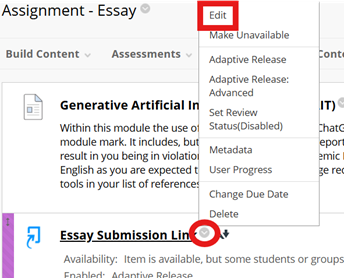
b. Select Edit from the menu (shown in the above image)
c. Change the setting under Web link options section > Open in New Window from yes to No
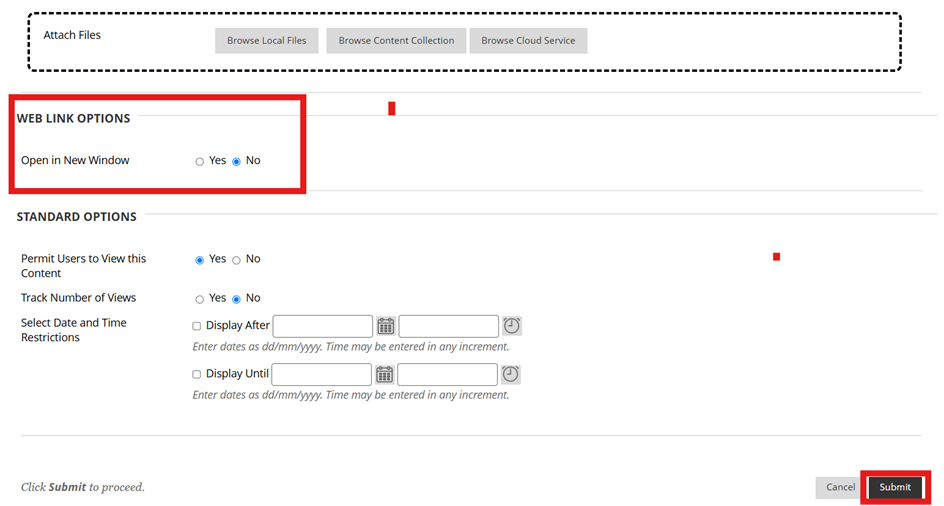
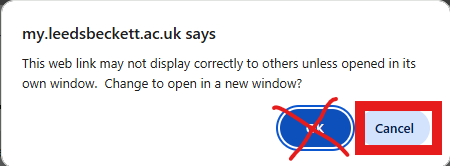
d. Click Submit and then a pop-up window appears > Select Cancel (otherwise the setting will not change).
Browser settings on individual devices
Please follow the steps in the workaround below to resolve the issue of any past assignment links.
Students can seek support from the Library & Student IT Advice Team.
To ensure that your preferred browser reflects the correct preferences:
- In Google Chrome (our recommended browser), select Settings (you can open the Settings page by clicking the icon with three stacked horizontal lines in your browser's menu bar) > Privacy & Security > Site Settings > Content > JavaScript > Please ensure that the option Sites can use JavaScript (recommended) is enabled
- In Safari, select Safari > Preferences > Security > Web content > Enable JavaScript
- In Firefox, select File > Preferences > Privacy & Security. If Strict is enabled, please change this to Standard
- In Microsoft Edge, select Microsoft Edge > Preferences > Cookies and Site permissions > JavaScript > Allowed (recommended)
If you would rather select 'Don't allow sites to use JavaScript and or 3rd party Cookies', please add api.turnitin.com / api.turnitinuk.com to the sites that are Allowed to use JavaScript / 3rd Party Cookies.
Once you have completed reviewing your browser's Privacy & Security preferences, please close your active browser and re-open a new browsing session so that any changes can take effect.
Turnitin / Ultra - releasing Marks early
On 3 March 2026 Turnitin have found an issue with how Turnitin behaves and releasing marks early to students in My Marks before the feedback release date in Ultra modules. This is being investigated by Turnitin and Blackboard. It is caused by the Feedback Release Date passing and changed after creating, this has affected several modules.
Workaround:
On creating a Turnitin Assignment, please ensure the Feedback Release Date is in the future - by default it is the same as the Due date.
Hiding the assignment link or the Grade Centre column from students will hide the mark but will prevent late submissions, please create a new late submission inbox if needed.
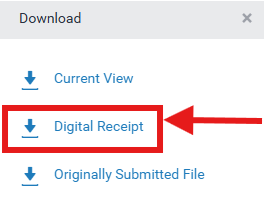
Students uploading Microsoft files into Turnitin may not process and the paper will not provide a Similarity Report, Digital Receipt or accessed to view.
Microsoft files generated using Windows, including .doc, .docx, .xls, .xlsx, .pptx, .ppt, .ppsx, and .pps files, can occasionally fail to process when uploaded to Turnitin. Files created using other operating systems are unaffected.
Workaround: Convert file to a PDF before attempting to upload it to Turnitin. This ensures it is in a format that can process gracefully and without any problems.
In Ultra, announcements are not displayed as a pop-up message when students access the module or community.
Announcements are still visible in the usual places such as within the module/community, via Activity Stream, Blackboard App, announcements sent to email.
Newsletters
We send newsletters to keep you up-to-date, look out for an email called 'MyBeckett News' which is sent to all Academic Staff via email. (Please get in touch if you have not received an email).
If you didn't receive a MyBeckett News email from Digital Learning Service (we use campaign monitor communication tool) and you want adding to the list or if you have accidentally unsubscribed, please let us know.
Special note:
If you have previously unsubscribed, you will not receive any wider comms from the University and we recommend you are added back to the list. Call or email the Digital Learning Service and we will action this for you.





