

Leeds Beckett University - City Campus,
Woodhouse Lane,
LS1 3HE
Create a Turnitin assignment | Ultra

Page last updated:
This staff guide explains how to create a Turnitin assignment link in your Ultra module.
Before creating a Turnitin assignment, please refer to our checklists that contain recommended Turnitin assignment settings for a range of assessment requirements. If you are not teaching on an Ultra module please see our alternative Turnitin assignment guide.
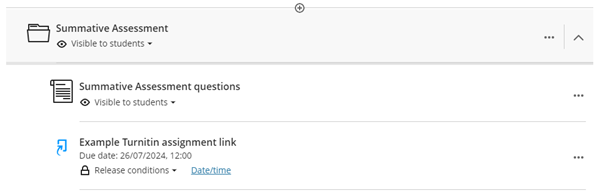
Please follow the steps below to create a Turnitin assignment in your module. Turnitin must be added to the module content page and not within an Ultra document.
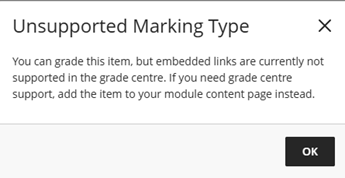
Important: Please do not set up embedded Turnitin assignments within Ultra documents as marks and feedback will be released early and marks will not sync to Grade Centre. If you create a Turnitin assignment within an Ultra document you will be presented with a pop up message regarding the risk. Please click OK. A pop up will appear to Insert item, please click Cancel.
Create a Turnitin assignment
a. Navigate to the Assessment area in your module where you want to add the Turnitin assignment link. If you need to expand a folder, you can use the arrow on the right.

b. Hover your mouse where you would like to add the Turnitin assignment link and you will see the plus icon (+) appear.

c. Click the plus icon (+) and select Other Content & Tools.
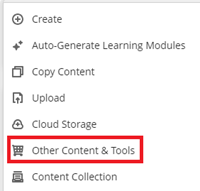
d. In the Content Market select Turnitin LTI.

e. You will see that there is no change to the Turnitin interface. Enter the details by following the guide to creating a Turnitin assignment. You will start from the third section named Assignment title and dates.
f. When you have finished creating the Turnitin assignment it will appear in the content area of your Ultra module.

*Please note: When setting up a Turnitin assignment in Blackboard Ultra there is no longer a requirement to hide the Grade Centre column.
Please refer to our full staff guide on using Turnitin, here's a selection of common tasks:





