Leeds Beckett University - City Campus,
Woodhouse Lane,
LS1 3HE
email signatures
A.
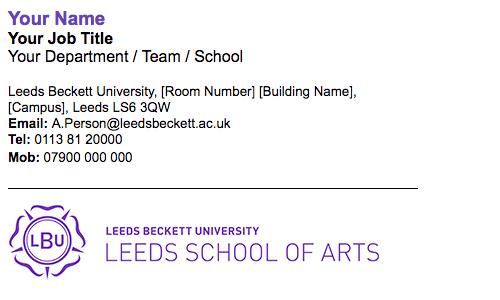
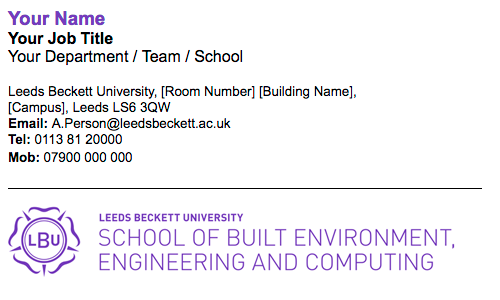
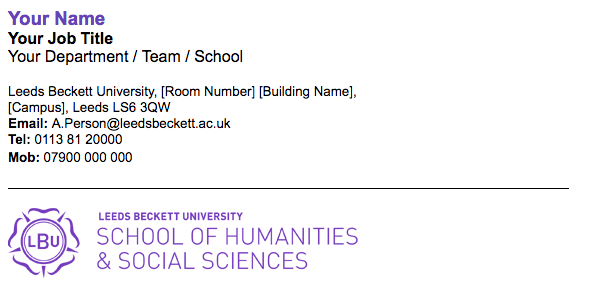
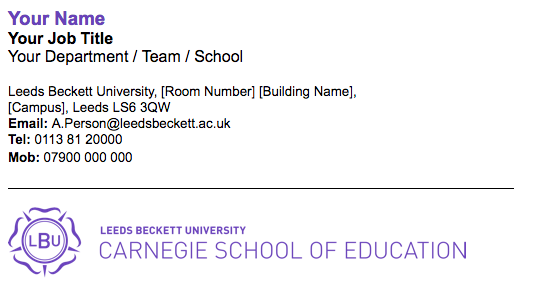
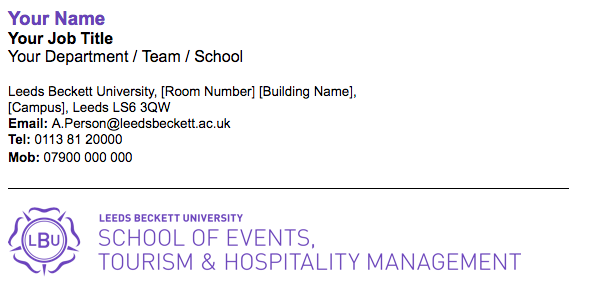
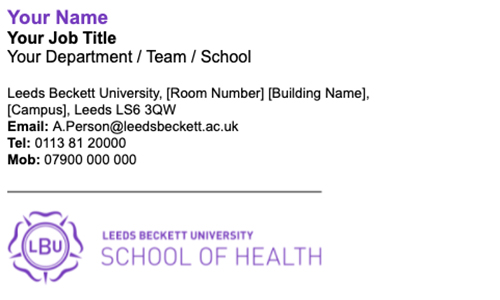
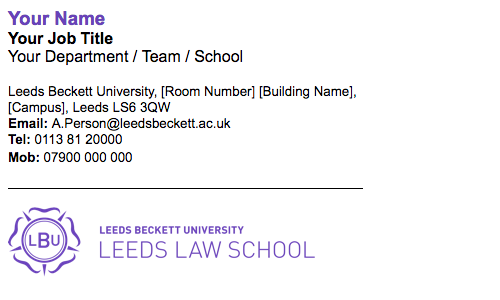
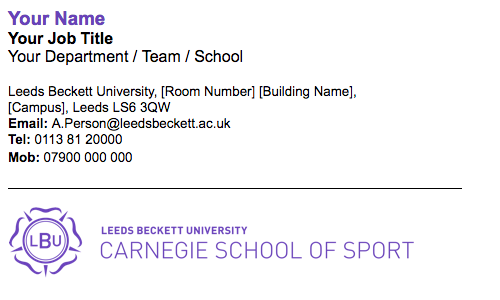
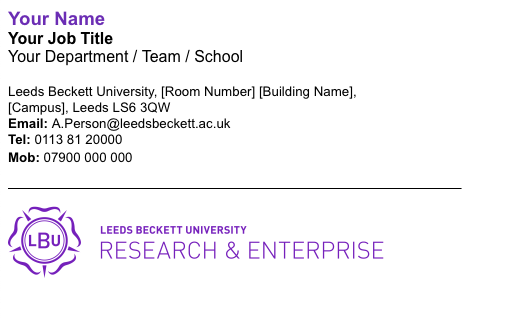
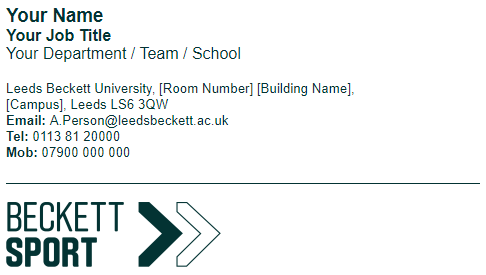
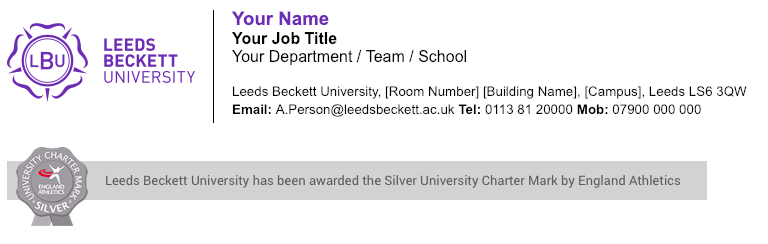
- Click on the image of the relevant signature and save the HTML file - depending on your browser settings, the HTML file will either automatically download to your Downloads folder, or prompt you to save it on your computer in a location of your choosing
- Open the HTML file and highlight and copy the signature
- In Outlook select the 'File' tab
- Select 'Options' from the left bottom corner menu
- Select 'Mail' from the left-hand menu
- Click 'Signatures' on the right-hand side
- Click 'New' and give your new signature a name
- In the large box right click and paste the signature (making sure to select the Keep Source Formatting option)
- Update the content with your details
- Click 'Save'
- Set your new email signature as the default for "New messages" and "Replies/forwards" under the 'Choose default signature' section
- Click "OK" and "OK" again until both setting pop-ups are closed
- Select "New Email" to open a new black message to check if your new signature is working correctly