Leeds Beckett University - City Campus,
Woodhouse Lane,
LS1 3HE
Blackboard rubrics | Ultra

Page last updated:
This staff guide will show you how to create different types of Blackboard Rubrics.
Creating a Blackboard Rubric to use in marking and feedback can be created as feedback only (Qualitative) or points based (Quantitative).
These are not interchangeable please see this guide on marking with Turnitin rubrics.
This guide shows you how to create a points based marking rubric which includes feedback.
a. Create a Blackboard assignment and select the Settings cog. Navigate to the Additional Tools section, enable Use marking rubric and select Add marking rubric.
b. This will open the Module Rubrics panel, which contains a brief description and two buttons:
- Create your own rubric to match your module handbook]
- Generate [AI-generated rubric]. The Generate button creates an AI-generated rubric, however, this guide describes the process of creating a rubric from scratch. This is the description:
- Your rubric can be percentage-based or point-based. For point-based rubrics, select the tick box to assign the rubric's possible points to the maximum points of the content.
- If you leave this option unticked, your rubric template won't be modified but its values will auto-adjust when marking to match the maximum points of the content.
c. Select Create, the next page displays a rubric grid.
d. Change the Rubric type to Points or Percentage, as these are the most commonly used options.
e. A pencil icon appears when you hover over columns headers, criterion or cell description. To edit rubric criteria, hover over the relevant box, select the pencil icon and update the score and description. The quickest method is often to copy and paste from the module handbook.
f. Once you have finalised the rubric and pressed the add.
g. If you attach the wrong rubric, select the rubric link to change it. Once you have made your changes, select Submit. The rubric will be listed below the Create and Generate buttons. From here, you can view and edit the rubric as needed. Always ensure the rubric points add up to 100.
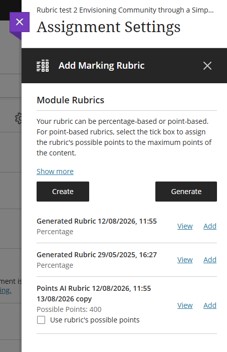
h. To apply the rubric to the assignment, select Add and submit.
i. The selected rubric will now be displayed in the assignment settings.
A qualitative (no-points) rubric can be used to provide feedback while entering the mark manually. You can create and attach a rubric before marking begins or when creating your Blackboard assignment link.
This type of rubric mirrors the format typically used in module handbooks, making it relatively straightforward to copy the existing criteria and descriptors into MyBeckett.
These instructions are for after creating a Blackboard assignment.
a. Open the Grade Centre in List view and choose the Blackboard assignment.
b. Open the Settings cog.
c. Scroll down to the Module Rubrics section and select Create.
Note: The rubric description is not relevant for this type of rubric.
d. Rename the rubric. The default name is New Rubric / Date. It is recommended that you include information such as the module level and academic year. This makes it easier to identify, reuse, duplicate, and update rubrics in future years.
e. Change the Rubric Type by selecting No Points from the drop-down menu.
f. Edit the Rubric column headers and Criterion to match those used in the module handbook (for example, 80+, 70-79, 60-69, etc.). Additional columns can be added using the plus (+) icon between cells. Copying and pasting directly from the handbook can save time.
g. Save and Add the feedback only rubric to attach it to the assignment.
This guide explains how to generate a Blackboard Rubric Evaluation Report for Blackboard assessments that use a Blackboard Rubric.
The report includes
Rubric Overview detailing the assessment being evaluated, the rubric used, the rubric type and the total number of student evaluations included in the report.
Rubric Overall Performance Shows the average score achieved by students compared to the total points available.
Rubric Analysis Displays a bar graph comparing the points possible for each rubric criterion with the average points students awarded.
Rubric Frequency Distribution Shows the percentage of students achieving each performance level for every criterion, along with statistical measures such as the mean, median, mode, and standard deviation. This can be used to analyse about student performance in more detail.
How to download a Blackboard Rubric Evaluation Report
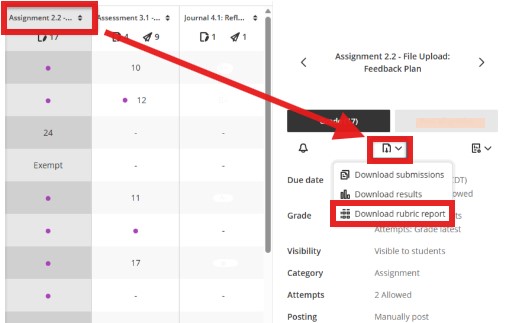
a. In the Grade Centre Grid view, select the column header to open the assignment settings panel.
b. Select Download (paper and arrow icon) then choose Download rubric report.
- If it is not available, no rubric used for that assignment.
- Use the left/right arrows at the top of the panel to navigate to between assignment.
c. The rubric report downloads as a PDF, and can be saved to your computer.