Leeds Beckett University - City Campus,
Woodhouse Lane,
LS1 3HE
Marking in Grade Centre | Ultra
Page last updated:
Navigating marking tasks
There are three marking tasks to manage are:
- Needs marking: submissions that haven't been graded yet, listed oldest first.
- Needs posting: grades you've entered but haven't released to students yet. Usually the Module lead will post marks.
- Needs reconciliation: grades from delegated or parallel marking that are ready for a final decision. This only appears if your course uses one of those grading modes.
You can access assessments from the main menu in MyBeckett:
- Activity Stream
- Calendar
- Marks
Activity Stream view - Marks and Feedback

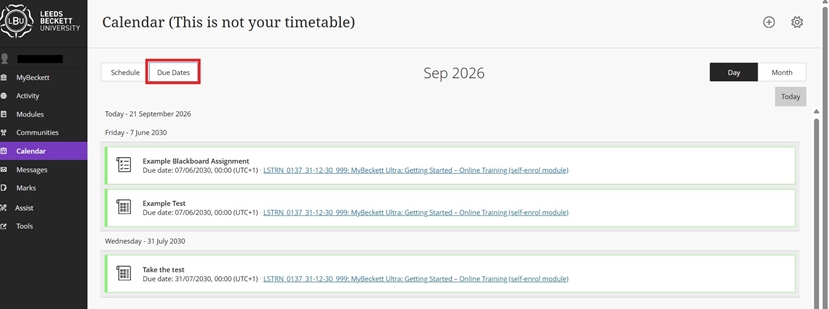
Calendar view - Due dates
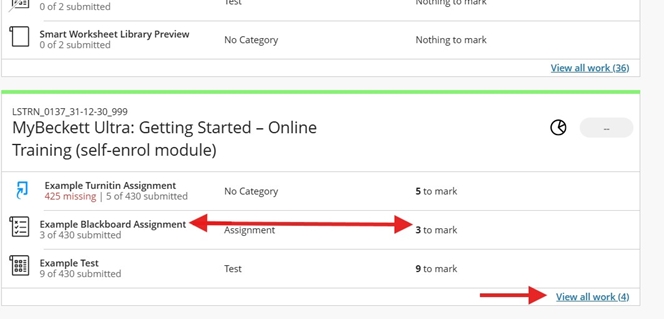
Marks view - All modules overview with assessments and marking status
There are three marking tasks to manage are:
- Needs marking: submissions that haven't been graded yet, listed oldest first.
- Needs posting: grades you've entered but haven't released to students yet. Usually the Module lead will post marks.
- Needs reconciliation: grades from delegated or parallel marking that are ready for a final decision. This only appears if your course uses one of those grading modes.
You can access assessments from the main menu in MyBeckett:
- Activity Stream
- Calendar
- Marks
Activity Stream view - Marks and Feedback
Calendar view - Due dates
Marks view - All modules overview with assessments and marking status
Navigate to a module and Grade Centre to use the new To Do button, this is visible within both Grade Centre grid or list views (top right). Any actions such as Needs Marking and Post Marks is indicated by the notification method of showing the number of actions per task to do.

- The To Do notification will show Needs Marking and Post Marks for all assessments - please do not use for Turnitin to post marks (see important note below)
- Selecting the To Do notification option is a quick method of navigating the Grade Centre views and will take you to the assignments with task specific functions of either the Needs Marking section and the Posting marks and feedback. Please note this information is only applicable for Blackboard Assignments, Tests, marked Journals and Discussions.
- Check the due date has passed and all submissions are marked before posting marks.
**IMPORTANT NOTE: This option (To Do notifications) is not intended for Turnitin Assignments
- If you post the marks for Turnitin assessments via the To Do button it will not overwrite the setting in Turnitin Feedback Release Date - therefore students will only see their marks not the feedback.
- The Feedback Release Date continues to automatically control the visibility of both Marks and Feedback for Turnitin Submissions.
- Please also be aware that there is a known issue with Turnitin and Grade Centre Syncing and is not a true reflection of needs marking - please continue to open the Turnitin inbox for a true reflection of the items to mark and submission data.
You can sort the columns to organise by priority such as by Marking Status.
a. Within Grade Centre List view, sort the column for Marking Status by clicking the name, this will reorganise the column quickly to display. NB: Not to be used for Turnitin assignments.