

Leeds Beckett University - City Campus,
Woodhouse Lane,
LS1 3HE
Using the Online reading list system for the first time
This staff guide shows you how to use the Online Reading List system for the first time.
Please note this video guide refers to MyBeckett Original, if you are teaching on a MyBeckett Ultra module please see our alternative Reading List guide.
The Online Reading List System is accessed via MyBeckett and uses the University's Single Sign on (SSO) system to log you into the system.
a. Log into MyBeckett and navigate to your desired module.
b. Click on the 'Reading List' link within the module. This is located in the menu on the left under Library Resources
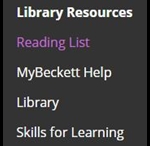
*If this is your first time logging into the online reading list system, you will be prompted to update your user profile. You will only need to do this once.* See the next section below to update your profile.
c. When accessing the online reading list via MyBeckett for the first time, you may see the 'Add list section' option. Click on 'Save' on the right-hand side in order to ensure the link is visible to students and is stable with MyBeckett. If the 'Save' option doesn’t appear then the link has already been saved.

This will only need to be done once (per academic year) and can be easily relinked or changed using the 'Relink?' option at the top of the screen which appears when you go back into the reading list.

If you have any issues accessing the online Reading List, try clearing the browser cookies. You may need to log in again afterwards. If this does not resolve the issue then try our Reading List FAQs for more help and guidance.
Please note: the Reading List bookmarking extension no longer supports Google Chrome and does not work well in Safari, we recommend you use Microsoft Edge. When accessing MyBeckett we recommend you use Google Chrome. We also recommend you make updates to your online Reading List from a desktop PC or laptop, as some of the functions may be difficult to use from a smaller screen (i.e. mobile device).
You can create your profile using the following steps:
a. Login to MyBeckett and go to the module in question, and click on the ‘Reading List’ link in the menu on the right.
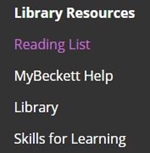
b. If you are using the online reading list system for the first time, you will prompted to create your profile after logging in.
On the following screen, update your user information, which includes: name, university email address, how you describe yourself (i.e. teaching staff) and your profile privacy/visibility selection: Private or public.
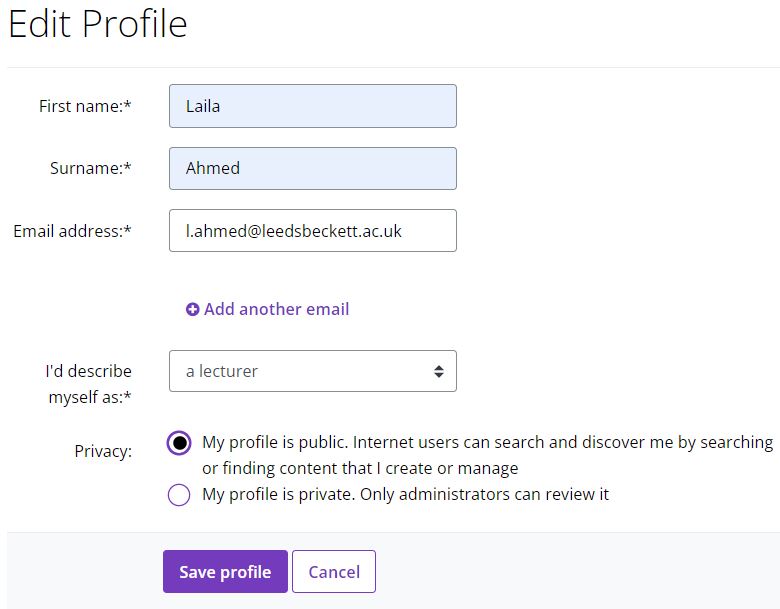
c. Once you are done click "Save Profile".
If you already have a profile and want to update it. Use the following steps:
a. Go to the navigation bar at the top of the online Reading List and click on your name. Right-click on 'View Profile' to open your profile in a new tab.
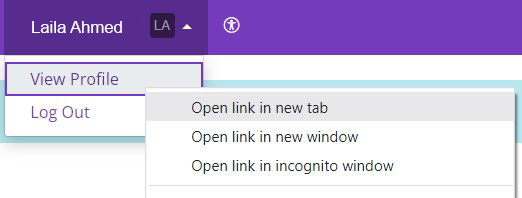
b. Click the Edit button (located to the right of your screen).
c. Update your profile and once you are done click "Save Profile".
If you want to return to the module content, go back to the tab with MyBeckett open.
We recommend that you add the Online Reading List you are working on to your personal favourites area ('My Lists') within the Reading List system. This makes it easier to navigate the system and add resources to online reading lists.
To add a reading list to 'My Lists':
a. Log into MyBeckett and access the reading list via the 'Reading List' link
b. Click on the '+My Lists' button located on the right
c. The button will change to a tick next to My Lists
d. You have now saved the reading list to your personal 'My Lists' area

You can access the reading lists you have saved by going to the 'My Lists' link at the top left of the page, next to 'Home'.





