

Leeds Beckett University - City Campus,
Woodhouse Lane,
LS1 3HE
Add an online READING LIST | ULTRA

Page last updated:
This staff guide shows you how to add an online reading list to a MyBeckett Ultra module.
You can add a link to an online reading list or embed the reading list (or section of the reading list) in your Ultra module. If you are not teaching on a Ultra module please refer to our alternative guide to using the tool link to add a reading list to a module.
More information on accessing and using Reading Lists is available in the guides below. Please contact library@leedsbeckett.ac.uk for support with accessing and editing Reading Lists.
You can embed an online reading list or section of a reading list into the content page or inside a content folder.
a. Open the module and navigate to the relevant Content area.
b. Click the plus icon where you would like to embed the reading list and select Other Content and Tools.
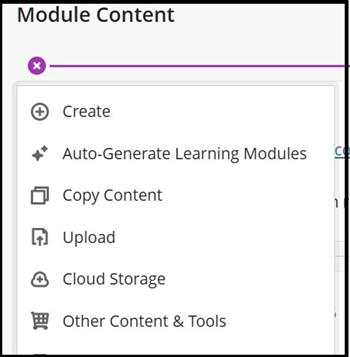
c. Scroll down and click the Online Customisable Reading List tool. The link will appear in the content area.
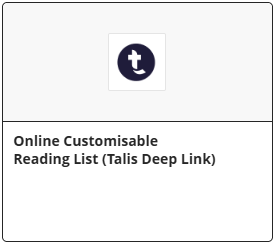
d. You can edit the link name and make visible to students by clicking the 3 dots and select Edit.
e. Click the reading list link and the reading list page will open.
f. Click Start to configure the online reading list.
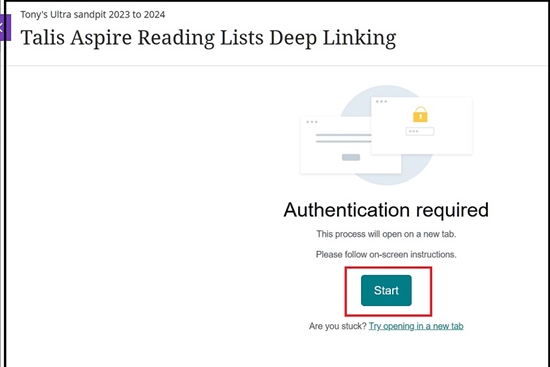
g. Please contact library@leedsbeckett.ac.uk for support with accessing and editing Reading Lists.
It is very important to utilise the Reading List tool within all your Ultra modules and for all reading material.
The following Online Reading List guide offers an introduction to the Reading List System the tool is called Talis Aspire Reading Lists within MyBeckett.
Authenticate the Reading List Tool via the Reading Lists & Tools menu
a. In your Ultra module you will need to Authenticate Talis Aspire Reading by first by selecting the Deep Linking tool. This is located in the full list of module tools under the Reading List & Tools menu link (right-hand side). The select the option at the bottom of the list of tools to Browse all module tools.
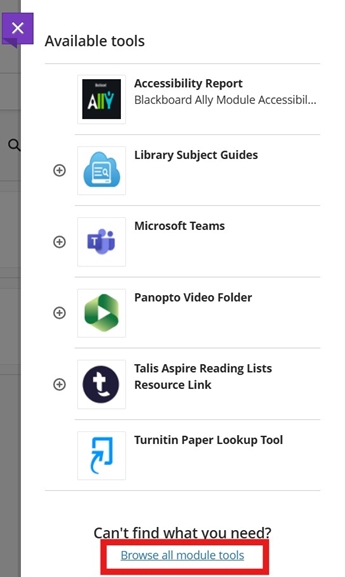
b. Select Online Customisable Reading List tool from the list and follow the prompts to Authenticate it.
b. Once authenticated you can use the Talis Deep Link tool to create a Reading List or use the search bar to find a list from another module or by various categories (e.g. name, subject area) and then choose to embed them in your module Reading Lists tool. The tool provides an option to preview the Reading List before you add.
c. We do not recommend using the Talis Resource Link (Online Module Reading List) tool - Students have access to this via the menu link and create their own reading lists.
Further information on Reading Lists, Digitisation and Copyright Guides (please ignore any references to MyBeckett Original)- Accessing the reading list system
- Add journal articles and dissertation examples to MyBeckett
- Bookmarking in reading lists
- Diversifying reading lists toolkit
- Editing and organising a reading list
- ERA licence
- Identifying e-books for online delivery
- Reading list features and tips
- Request digitised readings
- Scan print materials for MyBeckett
- The reading list system
- Use copyright material in education
For all Reading List queries contact the Library:
0113 812 1000





