

Leeds Beckett University - City Campus,
Woodhouse Lane,
LS1 3HE
Anonymous Marking (Turnitin)
Page last updated:
This guide provides information for staff working with anonymous Turnitin assignments.
What are anonymous assignments?
When a Turnitin assignment is set to anonymous, student names are removed from the submissions inbox and the title bar in Feedback Studio.
Do I have to use anonymous marking?
There's no University anonymous marking policy for assignments.
Check with your Course Team / School to see if you have a local policy. It's really important to be consistent in this area as consistency impacts on student satisfaction.
Important notes when using anonymous assignments:
*Once a student name has been revealed, it cannot be undone.
**Marks and feedback will be visible to students if the Feedback Release Date has passed. Hiding the Assignment Link and /or Grade Centre Column is required to and manually show (make visible) to students when marking is complete.
a. Student names are hidden in the submissions inbox and Feedback Studio. Inform the students not to type their name on the submission (although username e.g. Student ID c1234567, may be desirable).
b. You can only identify student submissions by the Submission ID (which is not the same as student ID). This is the only data available if you need to identify the submission.
c. Student names are revealed on the assignment Feedback Release Date. After this date the Marks and Feedback will be visible to students and cannot be reversed if the Feedback Release Date is amended after it has passed.
d. Submit on behalf of a student: This can be done if the assignment is set to anonymous, but only through the 'submit on behalf student' dropdown menu.
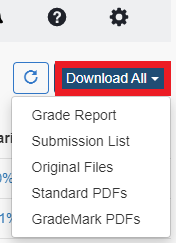
e. Non Submitters: You can identify students who have not submitted to an anonymous assignment. In the assignment inbox click Download All and select the Submission List option. Only names of the students who have not submitted will be listed.
f. Before the Feedback Release Date, you can reveal individual names if you provide a reason. This is logged to ensure an audit trail.
Step by step guidance is available in our Create a Turnitin Assignment guide. The anonymous assignment setting is located in the Optional Settings section.
If you are planning to share the marking with other tutors, you may also want to refer to our Dividing Students into Sub-Groups guide.
To reveal an individual student's name:
a. If necessary, you can click the Reveal Anonymous link for an assignment submission to enter a reason why you need to reveal an individual student's name. The reason is logged in the system for audit purposes. When you click the Reveal icon, the student's name becomes visible. (NB: You cannot reverse once revealed).

To switch off anonymous marking for the whole assignment, refer to our Edit a Turnitin Assignment guide which contains instructions for modifying assignment settings.
b. You can manually disable anonymous marking if no submissions have been made, by unticking the Enable anonymous marking setting.

c. If the setting was checked and submissions are present this cannot be changed and is greyed out.

Step by step guidance is available in our Mark Turnitin Submissions guide.
Step by step guidance is available in our Release Marks and Feedback to Students guide.





