Leeds Beckett University - City Campus,
Woodhouse Lane,
LS1 3HE
Create a standard turnitin assignment - new September 2026
Turnitin guide
Page last updated:
This staff guide explains how to create standard Turnitin assignments within your module.
Recommended settings
Read the description of each setting detailed in this guide. Please use the recommended settings checklist when creating assignments, this is a good starting point if this is your first time using Turnitin.
We strongly recommend that you check your settings every time you create a new Turnitin assignment, particularly those relating to the release of the marks to students, allowing late submissions and allowing students to check the similarity reports.
Managing flexible deadlines
If you need to use Turnitin to manage flexible deadlines for an assessment, please see our guide on managing late submissions, extensions and mitigation.
Staff Training
There are Turnitin online training modules available for you work through at your convenience.
Please follow the steps below to create a Turnitin assignment in your Ultra module. Turnitin must be added to the module content page and not within an Ultra document.
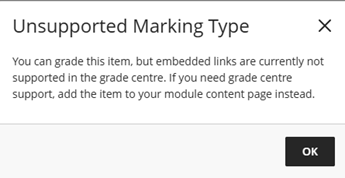
Important: Please do not set up embedded Turnitin assignments within Ultra documents as marks and feedback will be released early and marks will not sync to Grade Centre. If you create a Turnitin assignment within an Ultra document you will be presented with a pop up message regarding the risk. Please click OK. A pop up will appear to Insert item, please click Cancel.
Create a Turnitin assignment
a. Navigate to the Assessment area in your module where you want to add the Turnitin assignment link. If you need to expand a folder, you can use the arrow on the right.

b. Hover your mouse where you would like to add the Turnitin assignment link and you will see the plus icon (+) appear.

c. Click the plus icon (+) and select Other Content & Tools.
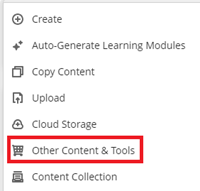
d. In the Content Market select Turnitin LTI.

e. Select the standard option
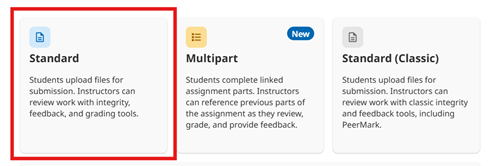
f. Select the appropriate assignment settings by following the steps below in this guide. Start from the third section named Assignment title and dates.
g. When you have finished creating the Turnitin assignment it will appear in the content area of your Ultra module.
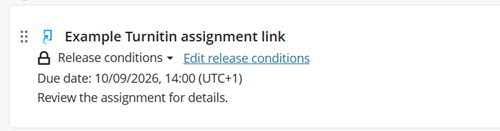
Please note: When setting up a Turnitin assignment in Blackboard Ultra there is no longer a requirement to hide the Grade Centre column.
a. Assignment name
Type the assignment title as specified in the Module Handbook or other module literature.
Recommendation: Use the format (Assignment Title) SUBMIT HERE, so that students can locate the assignment and understand where to submit. Avoiding using commas in the title, as this affects the export to Excel feature.

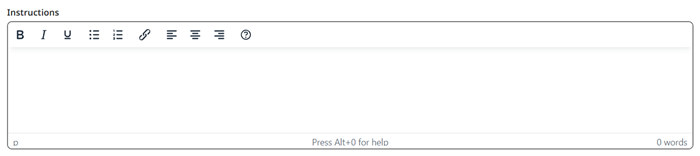
b. Assignment description
Provide instructions / info for students, e.g. "This assignment will be anonymously marked, only put your username on the submission. Don't include your name". You should also tell them what you want them to submit.
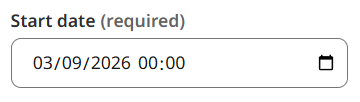
c. Start date
Determines when students can start submitting to an assignment.
d. Due date
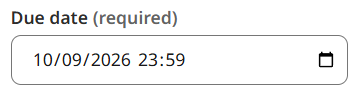
Determines when assignments are due. Set this to the due date specified in the Module Handbook.
*Students can't submit after the due date unless late submissions is enabled within Submission Settings (see Submission settings section this guide).
Recommendation: Set this to a time during staffed hours, so that support is available for students submitting assignments.
Please also be aware of the University system upgrade schedule when setting deadlines.
e. Feedback release date
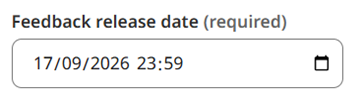
The date marks and feedback will be released for all submissions.
Recommendation: Set this to the date in the Module Handbook to ensure you are following the policy of work being marked within four weeks of the due date.
If you are teaching on a MyBeckett Ultra module, you do not need to hide the Grade Centre column as the Feedback Release Date will control the release of marks and feedback to students.
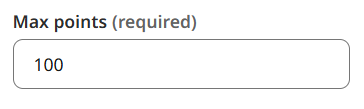
f. Max points
We recommend that you always set this to 100 and calculate the assignment weighting in Grade Centre when needed.
You can upload or create an assignment text template to be automatically excluded from the Similarity Report.
This can be useful if you ask students to add identical cover pages or student declarations for example.
Template Requirements:
- Uploaded files must be less than 100 MB
If your file exceeds 100 MB, you can reduce its size by removing any images or save the file as a rich text or plain text file. You could also copy the text from the file and paste it into the Create Custom Template text box.
- Templates must contain at least 20 words of text
- Accepted file types for upload: Microsoft Word (.docx), Microsoft Excel (.xlsx), Microsoft PowerPoint (.pptx), Adobe Acrobat / PDF Readers (.pdf), Web Browser (.html), .txt, .rft, .odt, .hwp
a. Attach a rubric
If you would like to mark the assignments using a rubric or grading form, you can attach this by clicking the attach rubric button.
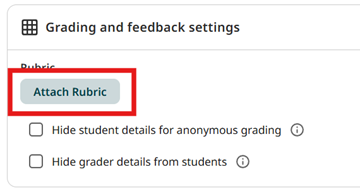
To create a new rubric or grading form, click the button to Launch Rubric Manager.
After creating a new rubric / grading form there will be a short delay before it appears in the drop-down list.
More information is available in our guide to creating rubrics and guide to creating grading forms.
b. Hide student details for anonymous grading
If ticked:
- Student names are hidden in the submission inbox
- You can only identify students by the paper submission ID
- Tell students not to type their names in the title or on the submission. (Username in title might be desirable)
- Names are revealed on the post date
- You can reveal individual names if you provide a reason. This is logged to ensure an audit trail
- Once you've revealed a student, you cannot undo the action
Recommendation: There is no University anonymous marking policy for assignments. Check with your Course Team / School to see if you have a local policy in place.
Leave unticked to continue seeing student names in the submission inbox.
Our guide to anonymous marking provides more information.
c. Hide grader details from students
When ticked, the grader's name and feedback timestamp are hidden from students on comments and QuickMarks. All feedback remains visible.
a. Allow late submissions
- Allows late submission after the due date and before the feedback release date.
- Students are only able to submit late if they have not already submitted a draft before the due date.
- Late submissions are visible in the submissions inbox, [highlighted in red].

Recommendation: Tick to accept late submissions. University policy states that students may submit up to ten dates late.
b. Allow resubmissions until due date
When selected, students can resubmit until the due date but will be limited to 3 submissions every 24 hours.
Recommendation: Leave this option ticked.
c. Allow submissions of any file type
Turnitin currently supports the following files types with which to generate a similarity report:
- Microsoft Word (DOC and DOCX)
- PDFs (Created using Adobe Acrobat)
- Powerpoint (PPT)
- Google Docs via Google Drive
- Corel WordPerfect
- HTML
- Adobe PostScript
- Plain text (TXT)
- Rich Text Format (RTF)
- OpenOffice (ODT)
- Hangul (HWP)

Recommendation: Leave this option unticked. If ticked, students will be able to submit a file type unsupported by Turnitin which can lead to similarity reports to not be generated.
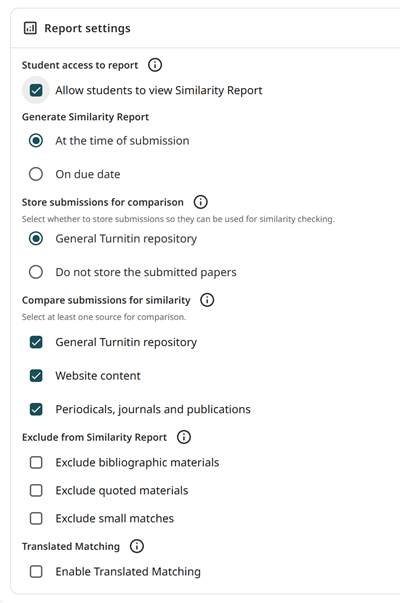
a. Student access to report
Choose whether students can see the report or not.
Recommendation: Tick to allow, so that student can learn from their mistakes and improve their assignments until the due date.
This recommendation was approved by the University Academic Honesty Group and Student Union.
b. Generate similarity report
There are two options which determine when students can view their similarity report:
- Option 1 - At time of submission (recommended)
- Option 2 - On due date
Option 1: At time of submission (recommended)
This recommendation was approved by the University Academic Honesty Group and Student Union to use as the default setting.
- The most flexible option for instructors and students
- Gives students the opportunity to understand Turnitin and Academic Honesty by self-reviewing and revising their submissions
- Students can resubmit as often as they want until the due date
- No resubmissions are allowed after the due date
- Similarity reports for the third or subsequent submissions experience a 24-hour delay before similarity report is returned
- Only the last submission is available to the tutor and student. Previous versions are removed
- Student submissions are only compared to one another within the assignment on the due date. This may result in a change in the text match results
- Important: Only view the similarity report as final after the due date has passed. This is the best time to check for collusion
Option 2: Generate reports on due date (students can resubmit until due date)
- Student may resubmit as many times as they want until the due date
- Students only get one originality report which is visible on the due date
- Students can't resubmit after receiving an originality report
- They can't re-submit after the due date
c. Store submissions for comparisons
This tells Turnitin whether or not to store the submissions on the Turnitin database so that they're compared against in the future.
Recommendation: for summative assignments, choose General Turnitin Repository so that submissions are stored on the database and are compared against in the future. For formative assignments i.e. you're only giving feedback, choose Do not store the submitted papers. This stops the paper being stored on the repository and a future summative assignment being flagged as possible self-plagiarism.
d. Compare submissions for similarity
Recommendation: Tick all three options so submissions are checked against the Turnitin repository, internet content, periodicals, journals and publications.
e. Exclude from similarity report
Recommendation: Don't tick any of the options to exclude material from the similarity report. If any are ticked it introduces the possibility that students can exploit the similarity report. Instructors are able to exclude later within the similarity report of the submissions. This ensures that you have control and the power to use the full scope of your academic judgement.
f. Enable translated matching
If students are submitting content in a non-English language, this option will allow Turnitin to translate the paper to English to then be compared against their English language database to create a similarity score.
Important: This will not create a visible translation and will not translate English submissions to compare against other language databases.
You can also access additional support and guidance below: