Leeds Beckett University - City Campus,
Woodhouse Lane,
LS1 3HE
Create a Turnitin multipart assignment
Page last updated:
This staff guide shows you how to set up a Turnitin multipart assessment in your MyBeckett module.
Multipart assessment helps to scaffold the student assessment creation process by breaking a larger project into stages. Further information on the benefits of using Turnitin's multipart assignment can be found in our Turnitin assignment types guidance.
We would recommend that you have discussions as a course team around whether to start using the new version of Turnitin in semester one or at a later point. Making the change at the same time will provide a more consistent experience for students.
Please note that Multipart assignments require caution: Staff should only use multipart assignments where there is a clear need and understanding of how they work. Known limitations and lack of support guidance are currently present.
1. In your module, locate the area where you want to set up the multipart assessment.
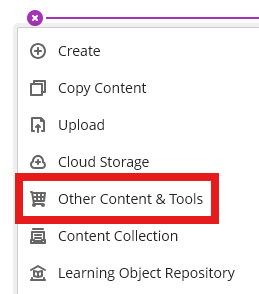
2. Click the plus button, click Other Content and Tools and select Turnitin LTI.
3. Select Multipart.
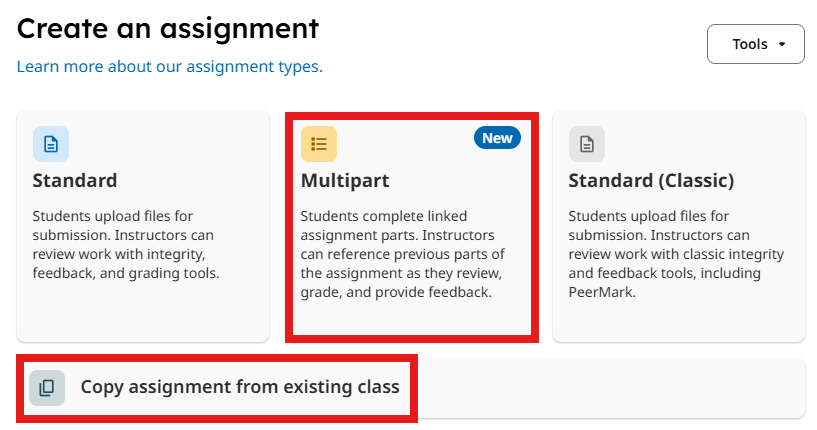
4. If you want to copy a Multipart assignment you’ve already set up, select Copy assignment from existing class, choose the correct module and navigate to the assignment you wish to copy.
5. Add an overall assignment title.
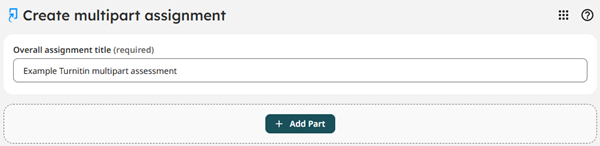
6. Click Add Part.
7. For each part of the assignment, complete the details and adjust the settings as appropriate. We recommend that you add the part number to each assignment part title, to make it easier for students to find the right part in your module. See more detailed guidance on each of the setting options in our create a Turnitin standard assignment guide. You can create up to 8 parts for each assignment.
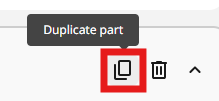
8. You can choose to duplicate a part if you want to copy across details of a part that you already created.
9. When you are happy with all the assignment details, click Create Assignment.
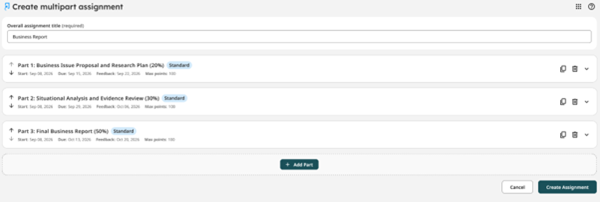
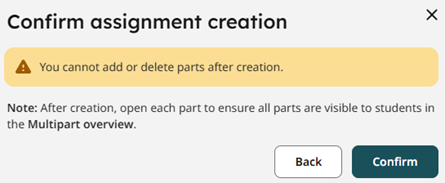
10. You will be reminded that you cannot add, reorder or delete parts after you create the assignment, so ensure that you have all the necessary elements in the correct order first.
11. Close the Success message and return to area where you set up the assignment.
12. Your multipart assignment will display as multiple Turnitin assignment submission links in your module.
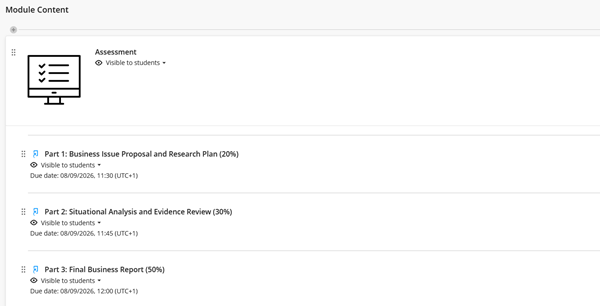
13. Important: Open each section of the assignment to ensure they are visible to students in their Multipart overview. Note that moving the Turnitin parts around in your module has no impact on their order in the multipart assessment overview for students and could be confusing. If you need to reorder parts, please create a new assessment.
1. Open the part of the assignment that you want to mark.
2. Follow the normal marking procedure for a the new Turnitin assignment experience. Guidance is available under the Marks and Feedback section of our Turnitin page.
3. The mark for each part will display separately in the grade centre for staff and students.
5. You can set up an overall mark column if you wish.