

Leeds Beckett University - City Campus,
Woodhouse Lane,
LS1 3HE
Reset your 'Welcome' password
Who is this for?
This is only for new and returning students.
For this you will require:
Access to the email address you used to create your account.
Step one
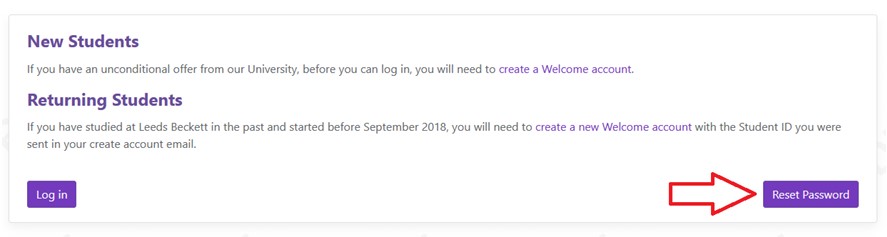
At the Welcome page, click on ‘Reset Password’ button in the section for New and Returning students:
Step two
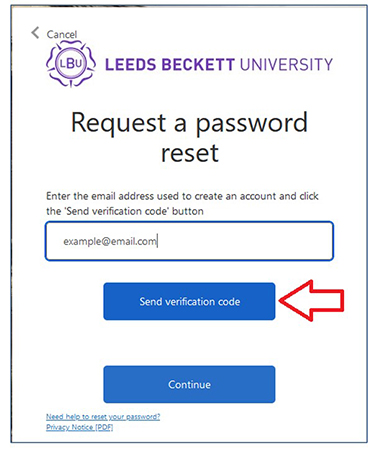
At the Password Reset page, enter the email you used to create your account in the ‘Email Address’ field, and then click ‘Send verification code’.
Step three
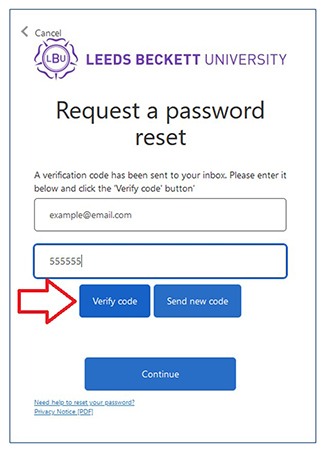
On the Password Reset page, you will be prompted to enter a verification code. Check your inbox for a message from Microsoft. Enter the code into ‘Verification code’ field and click ‘Verify Code’.
Step four
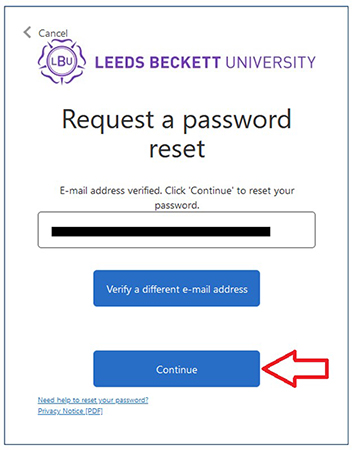
Once the code has been verified, you will be prompted to click on ‘Continue’. If you are able to continue, go to step six.
NOTE: You will only be able to continue if you have provided the email you used to create your account. Otherwise, you will receive the following error:
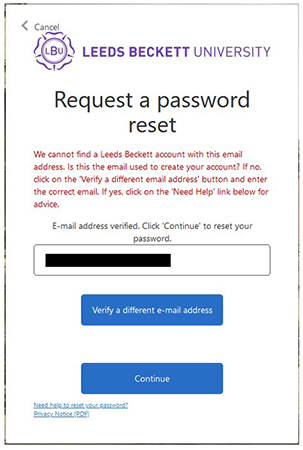
You must then click on ‘Verify a different e-mail address’ and then provide the email you used to create your account, and then follow steps two – four again. If you are unable to access the email you used to create your account, then you must email welcome@leedsbeckett.ac.uk for further assistance.
Step five
Once you have verified your email and clicked continue, you will be taken to a page where you can enter and confirm a new password.
Your new password must contain:
- A minimum of 12 characters
- At least 1 digit, e.g. 1,2,3,4,5,6,7,8,9,0
- At least 1 lower case character, e.g. a,b,c,d,e,f,g,h,I,j,k,l,m,n,o,p,q,r,s,t,u,v,w,x,y,z
- At least 1 upper case character, e.g. A,B,C,D,E,F,G,H,I,J,K,L,M,N,O,P,Q,R,S,T,U,V,W,X,Y,Z
- At least 1 symbol, e.g. !,”,$,%,^,&,*,(,)
Step six
Once you have clicked ‘Continue’, your password will be updated, and you will be logged in to Welcome.





